Checkmarx’s Bring Your Own Results (BYOR) feature imports HoundDog.ai findings into the Checkmarx One platform for a centralized view in Checkmarx’s Application Risk Management dashboard.
There are two ways to use it:
- Automated integration — configure HoundDog.ai to send all findings detected in a scan to Checkmarx One after every scan.
- Manual import — generate SARIF output with the scanner and import it with Checkmarx’s
cxCLI.
Either way, you need a Checkmarx One application with at least one project (Creating Applications).
Automated Integration
Section titled “Automated Integration”Your Checkmarx One account must have BYOR enabled and you need the required permissions. Collect the following:
| Field | Notes |
|---|---|
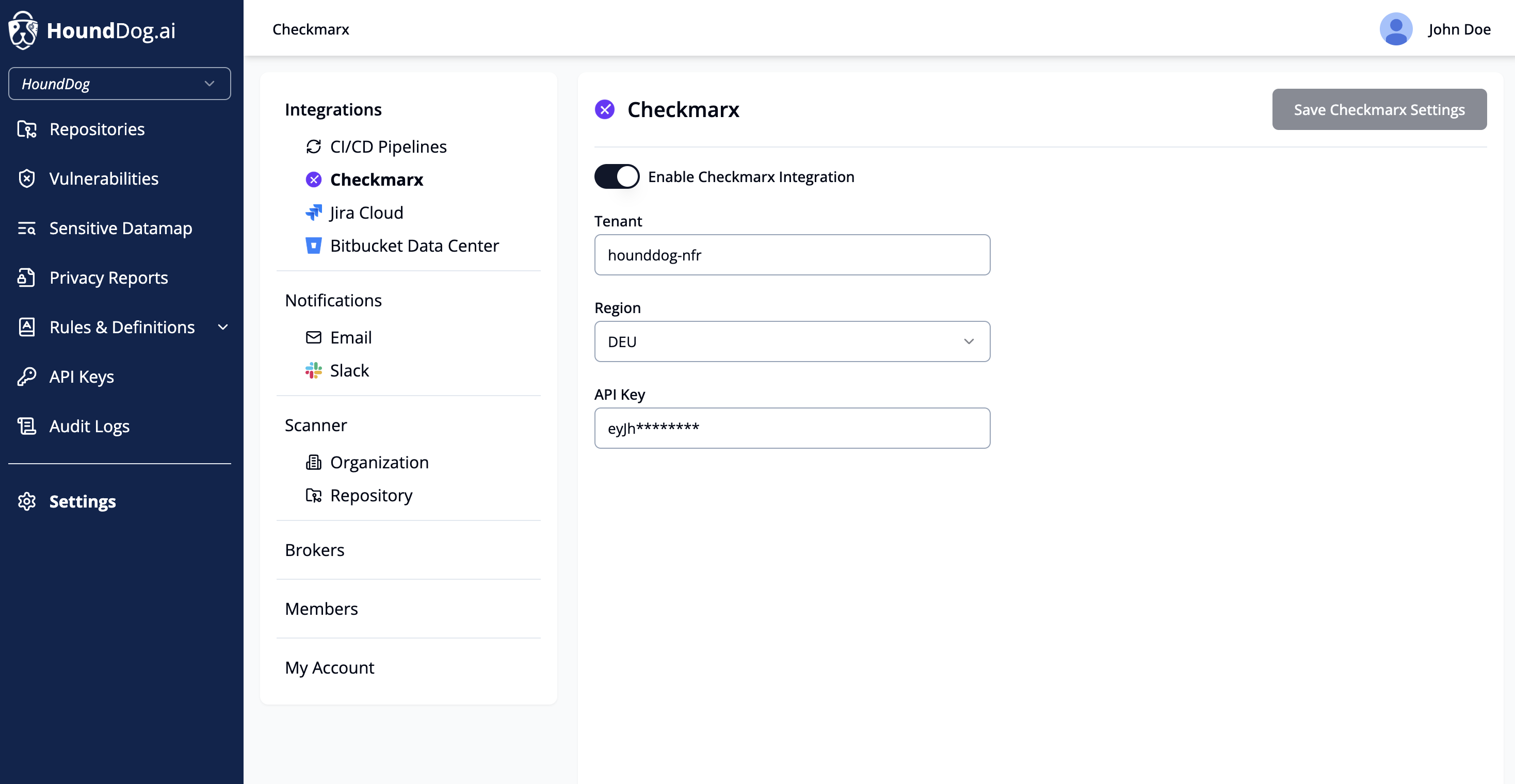
| Tenant | Your Checkmarx One tenant name (not the UUID), found in the Identity and Access Management console. |
| Region | One of: US Environment (default), US2 Environment, EU Environment, EU2 Environment, DEU Environment, Australia & New Zealand, India, Singapore, UAE, or Israel. If unsure, ask your Checkmarx administrator. |
| API Key | A Checkmarx One API key (refresh token) — see Generating an API Key. |
Then set it up:
-
In HoundDog.ai, go to Settings → Security Tools → Checkmarx, turn on Enable Checkmarx integration, then fill in Tenant, Region, and API Key and click Save.
-
On each repository’s detail page, select the Checkmarx project to associate with that repository. Each repository can be linked to one Checkmarx project.
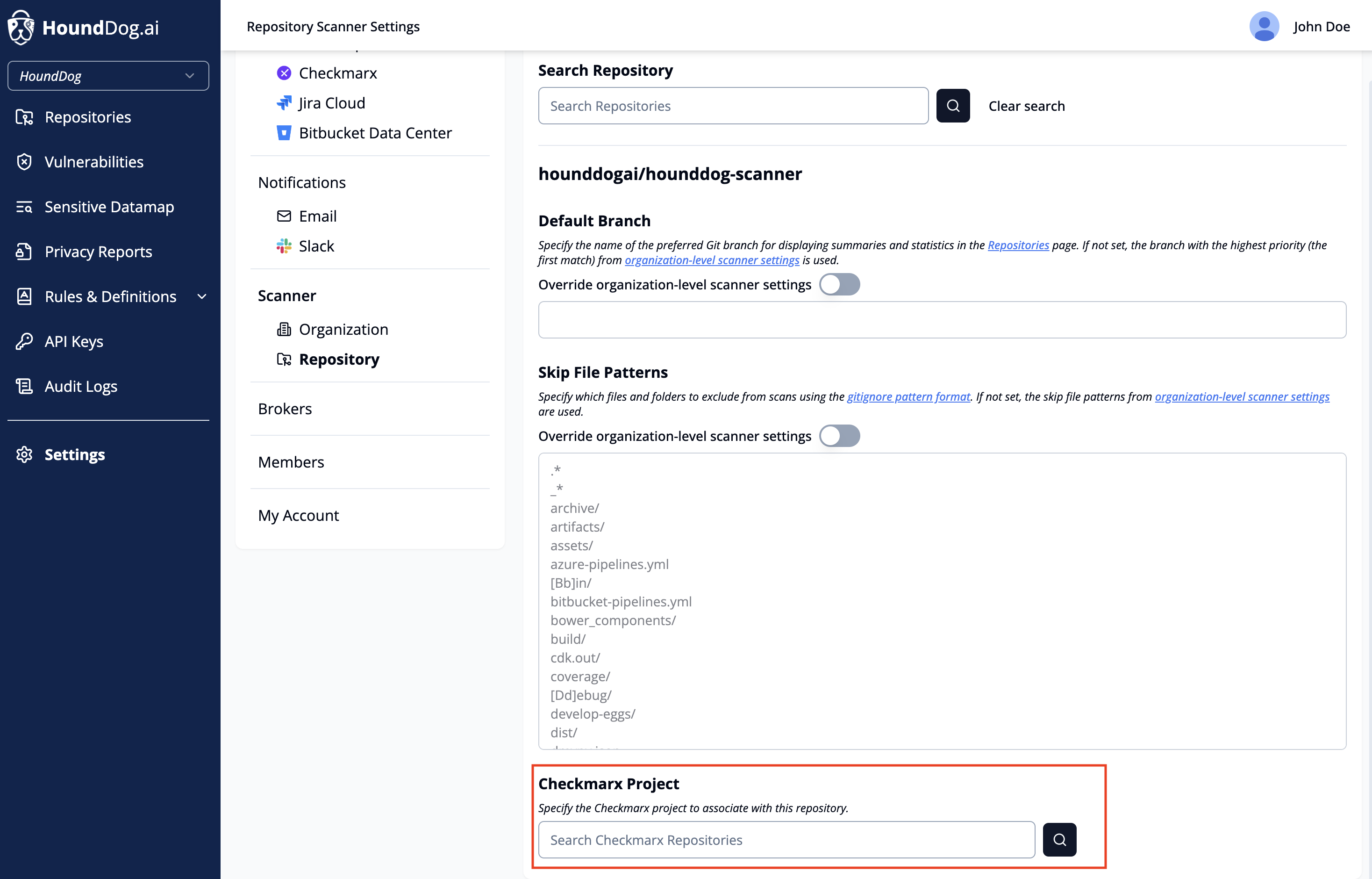
Once configured, every scan automatically sends all findings detected in that scan to Checkmarx One.
Manual Import
Section titled “Manual Import”You need:
- The latest version of the
hounddogcommand-line tool — see CLI Scanner. - A HoundDog.ai API key — the
checkmarxoutput format requires one. - The
cxcommand-line tool — see Checkmarx’s instructions.
Scan a repository and generate results in Checkmarx-compatible SARIF format (replace <repository-path> with the path
to the repository you want to scan):
hounddog scan <repository-path> --output-format=checkmarx --output-path=scan-results.sarifUpload the file to Checkmarx One using the cx command-line tool (replace <project-name> with the name of the
Checkmarx One project where you want to import the results):
cx utils import --project-name <project-name> --import-file-path scan-results.sarifOnce the upload is complete, the new findings appear in Checkmarx’s Application Risk Management dashboard.