
The hounddog scan command supports eight output formats, selected with --output-format:
| Format | Description | Requires API Key |
|---|---|---|
console |
Human-readable terminal output with tables and colors. The default. | No |
markdown |
A self-contained Markdown report with dataflow visualizations, code snippets, and remediation guidance. | No |
json |
Machine-readable JSON with the full scan results. | No |
agent |
Structured JSON optimized for AI coding agents, with remediation prompts. See also the MCP server. | No |
ide |
Machine-readable output for editor integrations. | No |
sarif |
SARIF for security tools such as GitHub Advanced Security. | Yes |
gitlab |
GitLab SAST report format for GitLab’s vulnerability dashboard. See GitLab CI/CD. | Yes |
checkmarx |
Checkmarx-compatible SARIF for Checkmarx One BYOR. See Checkmarx. | Yes |
The sarif, gitlab, and checkmarx formats require a valid HOUNDDOG_API_KEY (Enterprise
plan).
Output Destination
Section titled “Output Destination”Use --output-path to write the results to a file:
hounddog scan --output-format=sarif --output-path=hounddog.sarifWithout --output-path:
json,agent,sarif,gitlab, andcheckmarxwrite to stdout, so you can pipe or redirect them.markdownwrites to a timestamped file namedhounddog-report-<date>-<time>.mdin the current directory.consoleprints to the terminal.
The ide format always writes to stdout and ignores --output-path.
For all formats other than console and markdown, the scanner suppresses its progress logging so that stdout carries
only the results.
Markdown Reports
Section titled “Markdown Reports”The markdown format generates a point-in-time report of the sensitive data elements in your codebase, along with their
sensitivity levels, occurrence counts, file locations, and code snippets. See
a sample report on GitHub.
Here is an example command that scans the directory ~/foo and generates a Markdown file at ~/foo/report.md:
hounddog scan ~/foo --output-format=markdown --output-path=report.mdViewing the Report
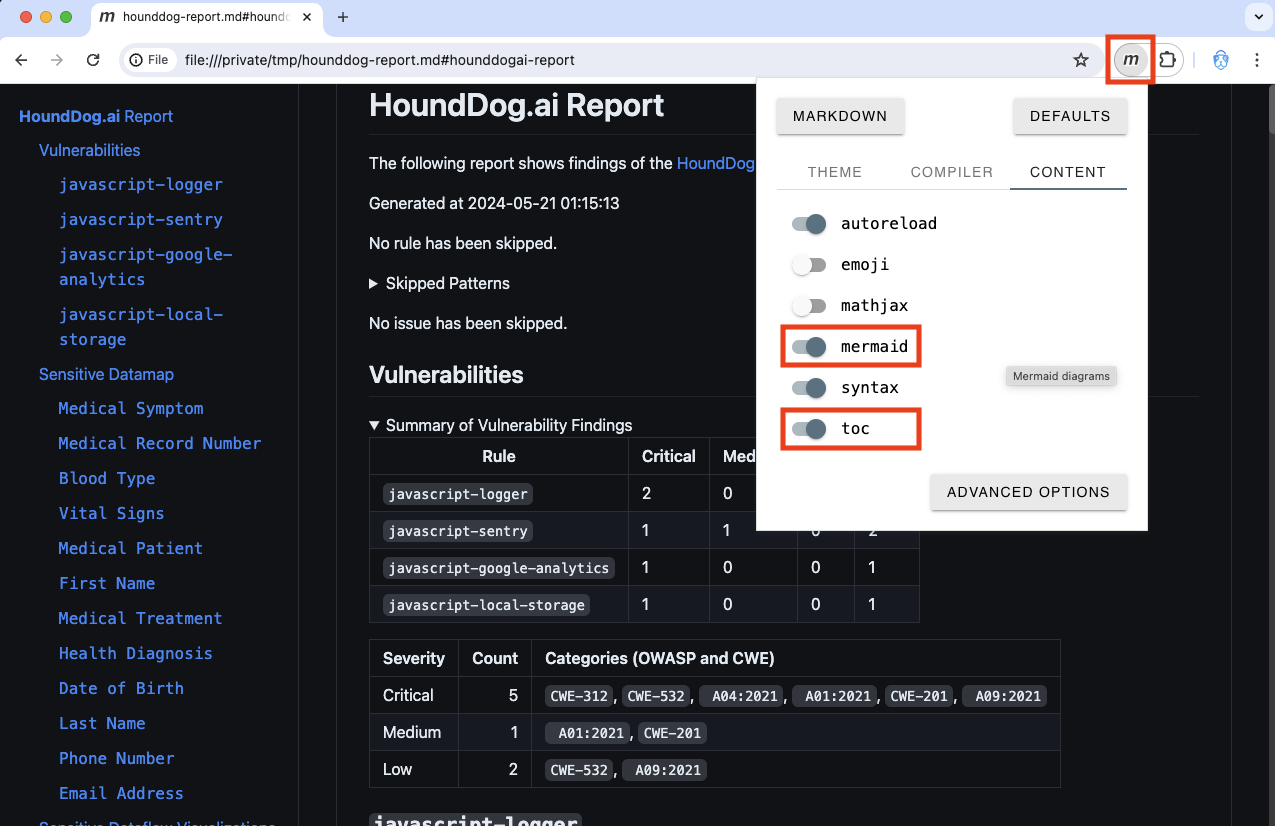
Section titled “Viewing the Report”We strongly recommend using Google Chrome and the Markdown Viewer browser extension to view the reports. Enable the extension’s mermaid and toc options to ensure all content renders correctly, including the dataflow diagrams:
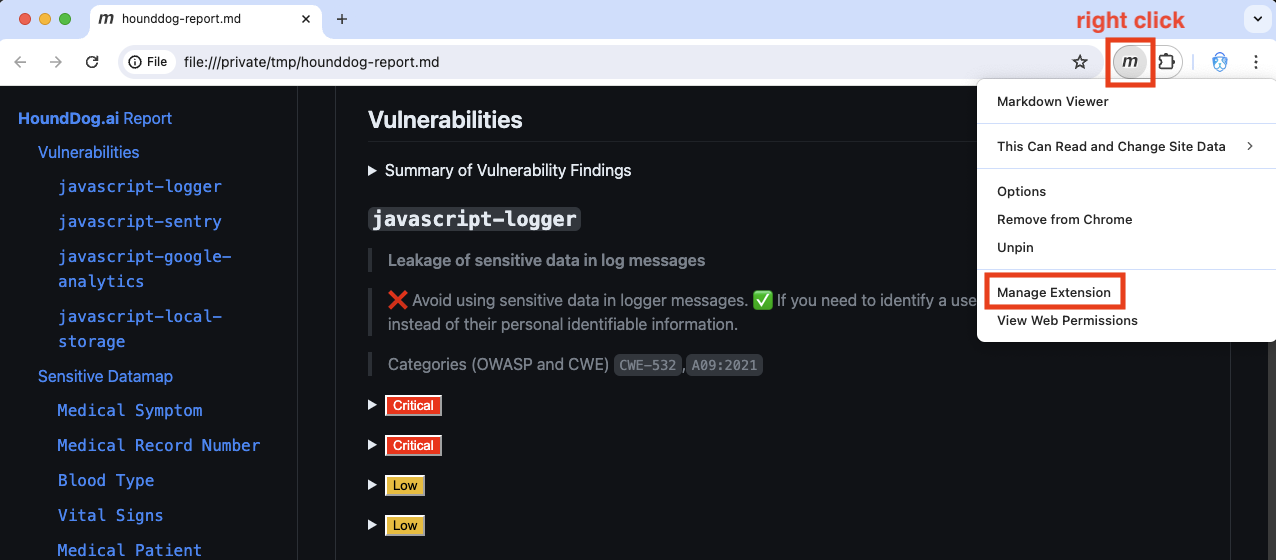
File access must also be granted to the extension. Right-click the extension icon and choose Manage Extension:
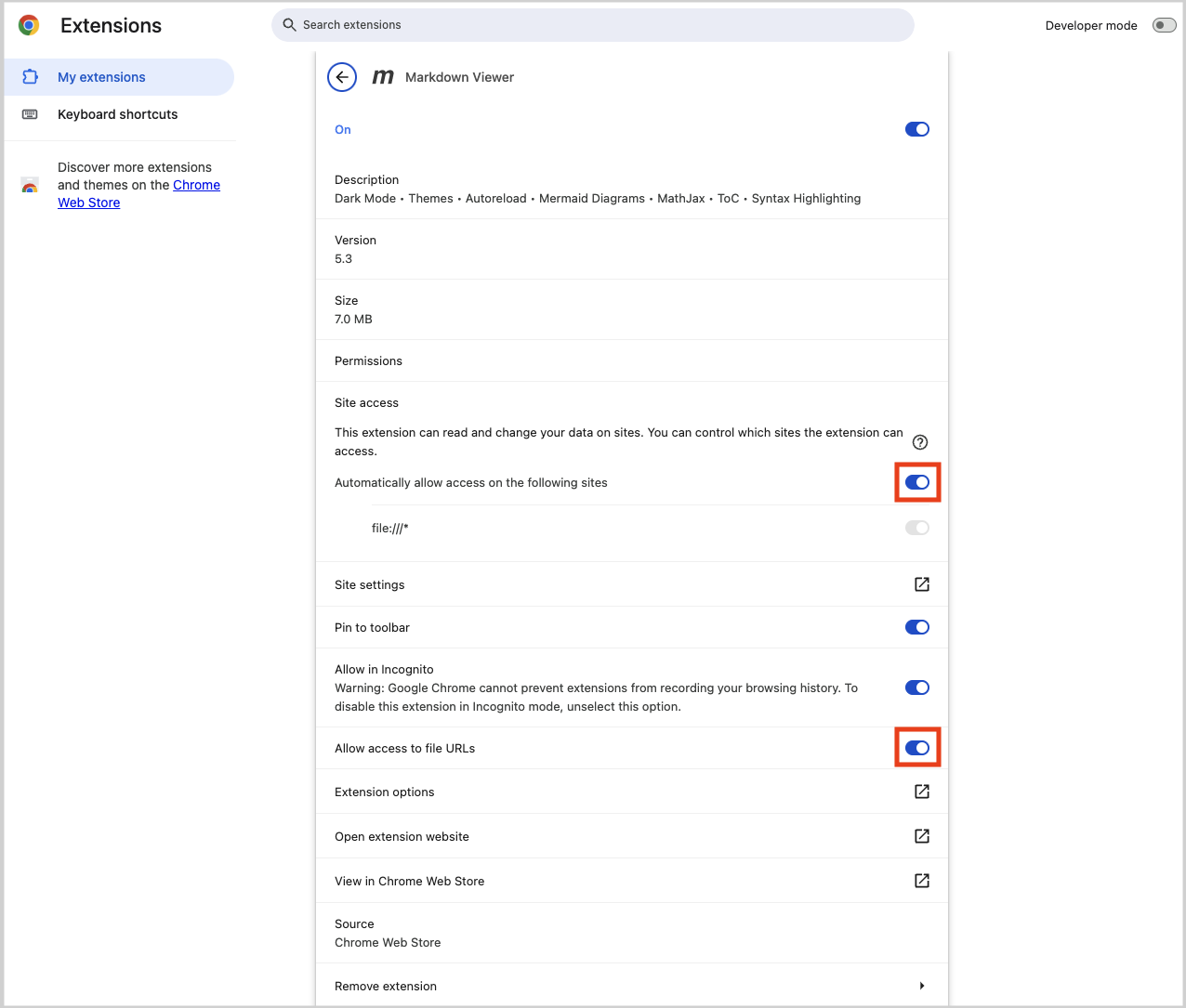
Then enable Automatically allow access on the following sites and Allow access to file URLs:
Listing Data Elements and Data Sinks
Section titled “Listing Data Elements and Data Sinks”The data-elements list and data-sinks list subcommands support their own formats via --output-format: console
(default), json, html, and markdown. For example, to generate a browsable HTML catalog of all data sinks:
hounddog data-sinks list --output-format=html --output-path=data-sinks.html