Scan rules define what the scanner detects and how findings are scored. HoundDog.ai ships a comprehensive default rule set with the scanner; the rules you manage here are organization-level customizations layered on top of those defaults. The scanner downloads your organization’s rules at scan time, so changes apply to every subsequent scan without any client-side configuration.
Each rule shows a Managed By value: HoundDog (shipped default, including AI-generated rules) or User (created by your organization).
Data Elements
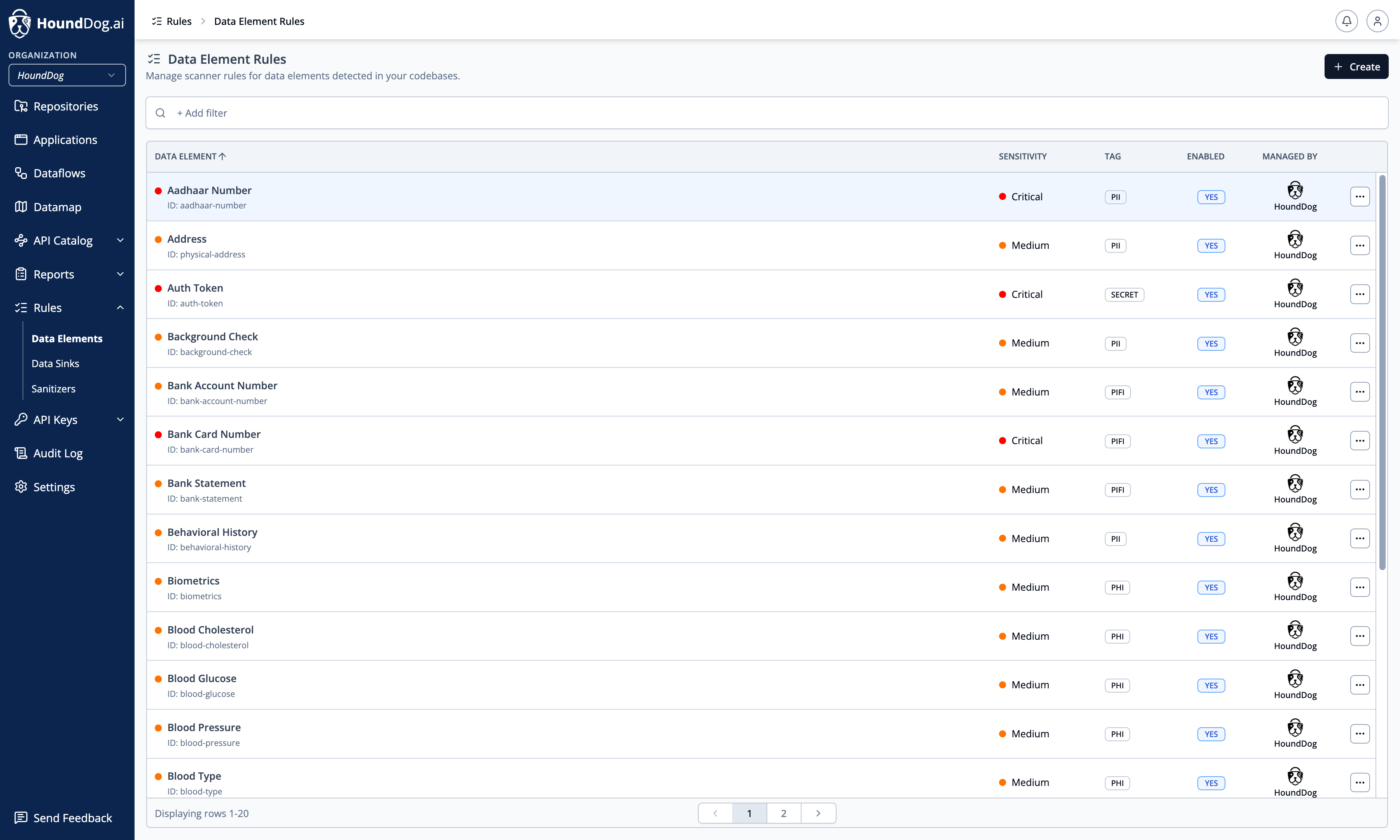
Section titled “Data Elements”Data elements are the sensitive data types the scanner detects — over 100 definitions ship with the scanner, covering common PII, PHI, CHD, PIFI, and secret data relevant to frameworks such as GDPR, HIPAA, and PCI. The complete, generated list is available in the scanner’s GitHub repository: data-elements.md.
View all data element rules and filter by name, sensitivity, tag (PII, PHI, CHD, PIFI, SECRET), enabled state,
and who manages the rule.
Creating a Data Element
Section titled “Creating a Data Element”Click Create and define:
- Name and ID
- Sensitivity — critical, medium, or low; this drives the severity of dataflows involving the element
- Tag —
PII,PHI,CHD,PIFI, orSECRET - Include patterns — symbol-name patterns that match the element in code
- Exclude patterns — patterns that should not match
Editing and Disabling
Section titled “Editing and Disabling”Shipped HoundDog definitions can have their sensitivity changed or be disabled, but their name, tags, and patterns are fixed and they cannot be deleted. Your own data elements are fully editable. Use the row actions menu to enable or disable a rule.
Data Sinks
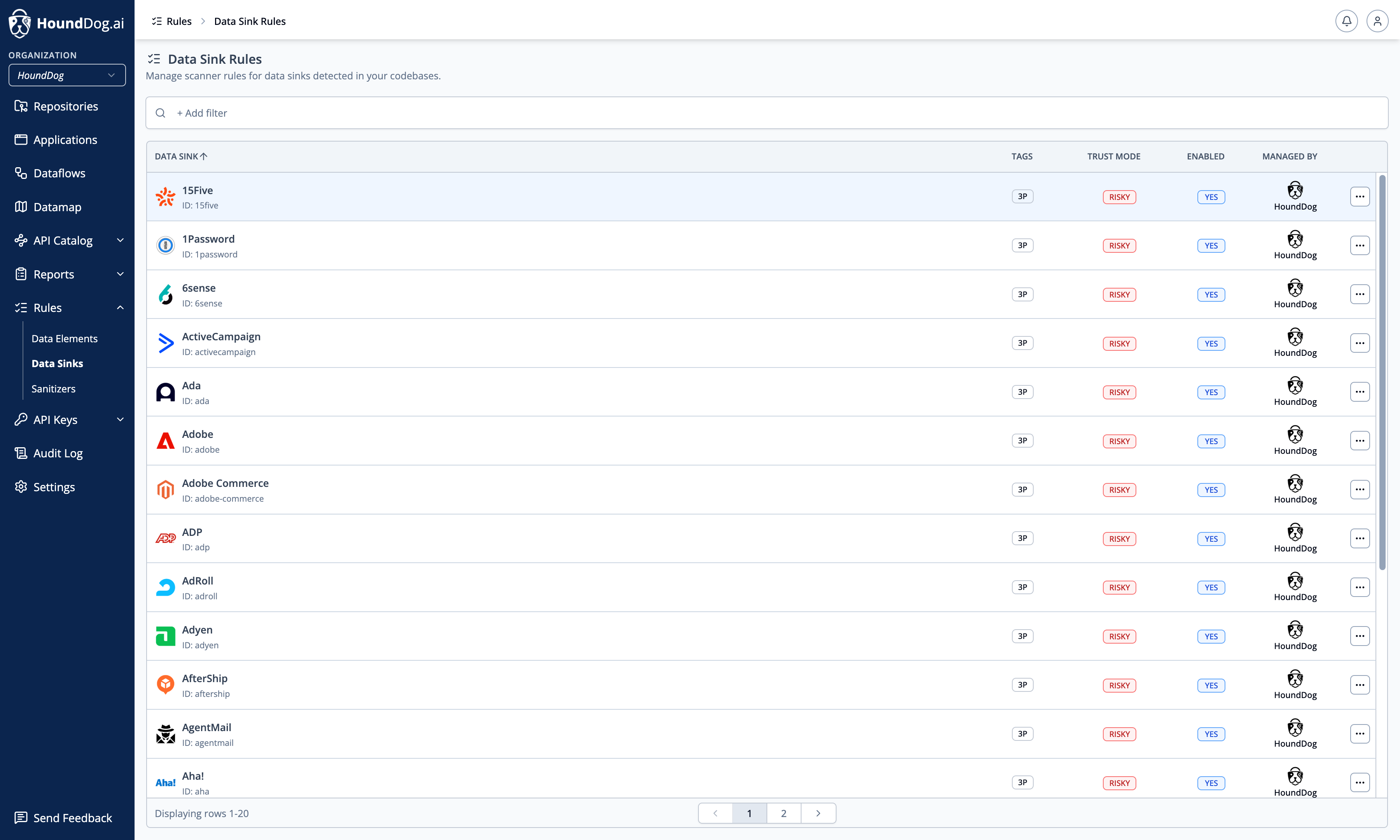
Section titled “Data Sinks”Data sinks are the destinations data can flow into — storage systems, third-party services, and AI integrations. The scanner ships with hundreds of sink definitions; the complete, generated list with per-language support is available in the scanner’s GitHub repository: data-sinks.md.
Data sink rules can be enabled, disabled, and configured, but not created or deleted — sink detection logic is part of the shipped rule set.
Safe vs. Risky
Section titled “Safe vs. Risky”Each sink has a trust mode:
- Safe — dataflows into the sink are recorded (they still appear in the Datamap) but are not flagged as risky.
- Risky — unsanitized sensitive data reaching the sink produces a risky dataflow, except for data elements on the sink’s allowlist.
Allowlists
Section titled “Allowlists”For risky sinks you can define safe data elements — the allowlisted data types that the integration legitimately needs. HoundDog.ai applies sensible defaults based on the nature of each integration: for example, the Stripe sink allowlists bank account number, card number, and name, because a payments integration requires them. Sending a Social Security number or health data to Stripe, however, is flagged.
Tuning allowlists to match your data processing agreements lets you catch true DPA violations without noise from expected behavior.
Managing Sink Rules
Section titled “Managing Sink Rules”Filter sinks by name, tag, trust mode, enabled state, and who manages the rule. Open an individual sink to enable or disable it, set its trust mode, and manage its allowlist.
Sanitizers
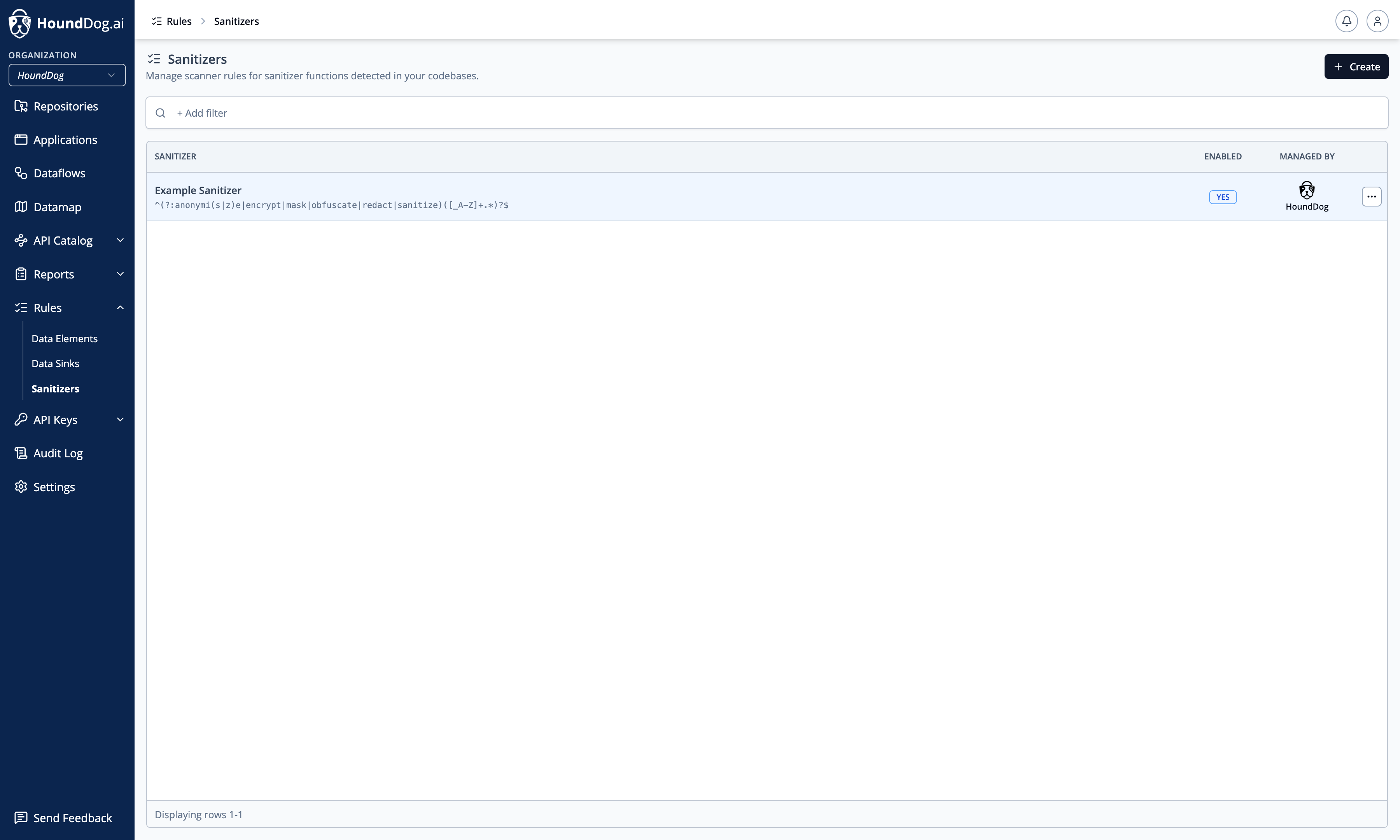
Section titled “Sanitizers”Sanitizers are functions that transform sensitive data into a safe form — masking, hashing, encryption, redaction, and the like. When data passes through a recognized sanitizer before reaching a data sink, the dataflow is considered safe rather than risky, so only plaintext exposures are flagged.
HoundDog.ai ships definitions for common sanitization functions; add your own to match your application’s helpers.
Creating a Sanitizer
Section titled “Creating a Sanitizer”Click Create and define:
- Name — a label for the sanitizer
- Pattern — a regular expression matching the function names to treat as sanitizing (for example,
^mask_.*orredactEmail)
User-defined sanitizers can be edited or deleted at any time.
Changes to any rule take effect on the next scan in your organization.